Math Ninja
Keywords
Background Context
I wanted to learn more about the difference between Unity C# Coroutines and using the Update() function. In order to do so, I ended up creating an educational math game called Math Ninja which is catered towards elementary schoolers who have trouble memorizing their multiplication tables. I was inspired to create this game from my little brother who had trouble memorizing his multiplication tables. If you are tired of flipping through boring old flash cards in hopes of memorizing your multiplication tables, then this game is for you!
Tech Stack I used
- Unity 2019 C#
Approximate Completion Time
- 2 months
What challenges did I run into?
Random Height Platform Position Generation
I needed a way to reliably generate random platform heights as they appear into view in my endless runner game. The platform’s height shouldn’t be so high that its impossible for the player to jump on the platform and it shouldn’t be too low where it would be invisible to the player’s view.
The constraints I defined were:
- Platform height should be between the lowest and highest point the player can see on the viewport.
- The next platform that appears to the right of the camera view should have a height between the last platform the player is standing on minus the player jump height to the last platform the player is standing on plus the player jump height:
// These define the bottom and top boundaries of the camera respectively
// left out the calculations for brevity
float localBotCamEdge;
float localTopCamEdge;

// ninja is the player game object you control
// with a floating point property named jumpHeight
float minHeightMod = lastPlatform.transform.localPosition.y - ninja.jumpHeight;
float maxHeightMod = lastPlatform.transform.localPosition.y + ninja.jumpHeight;
if (minHeightMod < localBotCamEdge)
    minHeightMod = localBotCamEdge;
if (maxHeightMod > localTopCamEdge)
    maxHeightMod = localTopCamEdge;

float randomHeight = Random.Range(minHeightMod, maxHeightMod);
Programming Player Jump
Here are 3 physics kinematic equations I used in my NinjaController.cs component to program player jump (wikipedia source):
v = u + atv^2 = u^2 + 2ass = ut + (1/2)at^2
vis final velocityuis initial velocityais accelerationtis timesis distance
The assumption I make is that u is always 0. So the 3 kinematic equations simplify down to:
v = atv^2 = 2ass = (1/2)at^2
The constraints I added to my NinjaController script are the following:
jumpHeightis a configurable value in the Unity Editor which representss. This measures how far in the y-axis the player travelled off the platform.timeToJumpApexis a configurable value in the Unity Editor which representst. This measures the amount of time in seconds wher the player reaches the highest point in the jump.
The unknowns I’m solving for are:
arepresentsgravitywhich represents acceleration that prevents my ninja player from floating in the sky.vor thejumpSpeedwhich represents a scalar velocity value.
To solve for gravity, I use the 3rd kinematic equation:
s = (1/2)at^2

jumpHeight = (1/2) * gravity * timeToJumpApex * timeToJumpApex
2 * jumpHeight = gravity * timeToJumpApex * timeToJumpApex
gravity = (2 * jumpHeight) / (timeToJumpApex * timeToJumpApex)
To solve for jumpSpeed, I use the 1st kinematic equation:
v = at

jumpSpeed = gravity * timeToJumpApex
// substitute gravity to be in terms of jumpHeight and timeToJumpApex
jumpSpeed = ((2 * jumpHeight) / (timeToJumpApex * timeToJumpApex)) * timeToJumpApex
The benefit of this approach is that I can define how high my player can jump which can be used to control how high or how low the next platform that comes from the right of the camera is.
The drawback of this approach is that if I wanted to directly tune the player’s jumpSpeed, I won’t be able to do so as its being controlled indirectly by the jumpHeight and timeToJumpApex variables. Alternatively, if I made the constraints to be the jumpSpeed and gravity where these are configurable in the Unity Editor, I could solve for jumpSpeed and timeToJumpApex using the kinematic equations defined above.
Coroutines Usage
At the time, I was trying to figure out was how to create a generic event driven system combining Coroutines and the Observer Pattern. I needed a way where I can register functions to callback functions or C# events that my system would invoke. I ended up coming with a system called WorldEventSystem.cs where I can define custom events and manually invoke them in a function called TimerEventLoop() which begins in the Start() function of WorldEventSystem.cs via StartCoroutine() function.
The way I planned it out was figuring out a list of custom events that would trigger every updateFrequency seconds. The custom events would be called in a coroutine function: TimerEventLoop(). The list I came up with was:
OnPreTimerElapsed()OnTimerInterrupted()OnCurrentTimerElapsed()OnPostTimerElapsed()OnPlayerActionEvaluated()
In code their declarations look something like this:
// register any callback functions that would occur at the start of TimerEventLoop() function
public delegate void PreTimerAction();
public static event PreTimerAction OnPreTimerElapsed;

// register any callback functions that would occur at the end of TimerEventLoop()
public delegate void PostTimerAction();
public static event PostTimerAction OnPostTimerElapsed;

// register any callback functions that may interrupt OnCurrentTimerElapsed();
// this event gets called before OnCurrentTimerElapsed()
// returns true if can be interrupted; false otherwise
public delegate bool InterruptTimerAction();
public static event InterruptTimerAction OnTimerInterrupted;

// register any callback functions that may get interrupted here
public delegate void CurrentTimerAction();
public static event CurrentTimerAction OnCurrentTimerElapsed;

// this was only used to register 1 function to check if a player is dead or not as it gets checked at the end of TimerEventLoop()
public delegate void EvaluatePlayerAction();
public static event EvaluatePlayerAction OnPlayerActionEvaluated;
Timer Event Loop
using System.Collections;
using UnityEngine;

private IEnumerator TimerEventLoop()
{
    // add a busy wait here to ensure all delegates are loaded up with functions to execute
    while (OnPreTimerElapsed == null)
    {
        yield return new WaitForEndOfFrame();
    }

    while (!NinjaController.IsDead)
    {
        OnPreTimerElapsed();
        StartTime = startTime = Time.time;
        yield return new WaitForSeconds(updateFrequency);
        ElapsedTime = elapsedTime = Time.time - startTime;


        bool canInterrupt = false;
        while (elapsedTime < updateDuration)
        {
            foreach (InterruptTimerAction interruptAction in OnTimerInterrupted.GetInvocationList())
            {
                //it needs to run all functions subscribed to this event to ensure data stablility
                if (interruptAction())
                    canInterrupt = true;
            }

            if (canInterrupt) break;

            OnCurrentTimerElapsed();

            yield return new WaitForSeconds(updateFrequency);
            ElapsedTime = elapsedTime = Time.time - startTime;
        }

        OnPostTimerElapsed();
        OnPlayerActionEvaluated();

        yield return new WaitForSeconds(displayDelay);
    }

    yield return null;
}
By applying the Observer Pattern, I can register any functions that require being called in any of the custom event functions by using the += operator in C#. What this does is add a function to these events to be called as an event in C# can be treated as a list of functions that get called in the order they are added.
To remove them, I use the -= operator in C#. I do this when the gameobject subscribed to the event is destroyed.
Some Problems I ran into were:
- When I call
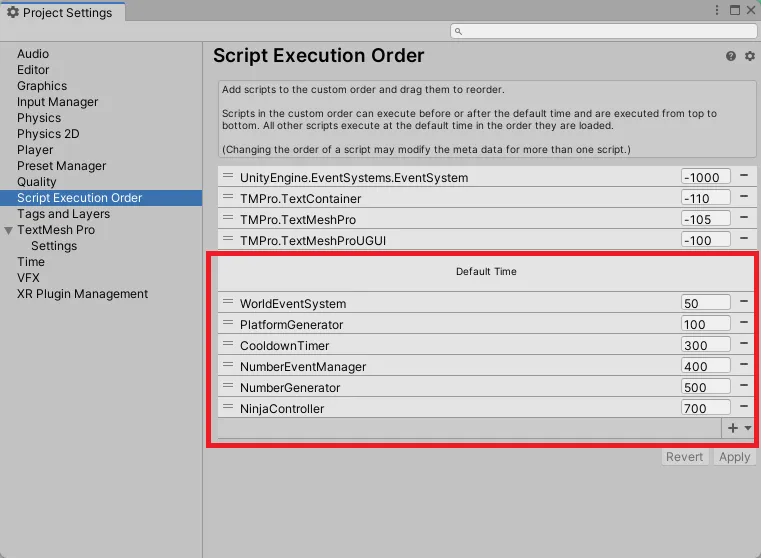
StartCoroutine(RoutineFunctionToRun())in multiple scripts all on theStart()function, in what order will they run in? I fixed the race conditions I ran into by manually setting the Script Execution Order for my scripts. This works by running the scripts with the lowest time priority first and the scripts with the highest time priority last:
- Side effects — Since these events decoupled what actual functions are being called, I would have to step through the code and see which function that is registered to one of these events that maybe causing an issue in the game.
One of the things I would have changed with this design is to delete the OnPlayerActionEvaluated() event as it only gets registered to 1 function which checks if the player is dead and attach the function which checks if the player is dead to the OnPostTimerElapsed() event instead.
Overall, it was a good small project to learn the difference between when to use coroutines and when to use the Update() function in Unity.
What did I learn?
- Use the
Update()function when you know someone has to update every frame. Examples include when player moves around the endless runner or as platforms shift to the left. - Use Coroutines for things that don’t need to be updated every frame. Examples include setting up the multiplication timer countdowns as those only need to update once every second rather than every frame.
- For this project, I fell into the trap of trying to make a generic tool that I can use for any kind of game I worked on with the
WorldEventSystem.csimplementation looking back at the project in hindsight. Now, I would work based on my game’s core features and build solutions around that rather than trying to think about ALL the possible ways something could be done as that would blow out the scope of the game’s work. - The original intent of
WorldEventSystem.cswas to create a timer event driven based system that I can reuse throughout different Unity Game Projects. In reality, I only used this code structure once in Math Ninja. - I learned that I can’t predict when chunks of code will be reused. They only appear as I create code repetition which is a better signal to decide when to wrap chunks of code in a helper function for later reuse.
Game Features
- Player Controller that can move and jump
- Randomly generate platform height positions
- Randomly generate multiplication problems and possible answers
- Create a countdown timer for when player needs to answer multiplication problem by
- A system where player can pickup possible answers which spawn near the ledge of each platform
Game Credits
- Ninja (Spelunky) https://www.spriters-resource.com/fullview/56425/
- Tiles and background images by Franco Giachetti http://www.ludicarts.com/free-game-platform-tileset/ which is licensed under Creative Commons Attribution 4.0 International License (https://creativecommons.org/licenses/by/4.0/)